
Google Reinvents AI Learning With NotebookLM Video Overviews
Google Reinvents AI Learning With NotebookLM Video Overviews
From Research Assistant to Animated Educator
In a world where attention spans are more endangered than coral reefs, Google’s NotebookLM is evolving faster than anyone expected. The latest update drops two new tools that make learning not just engaging—but dare I say, even a little fun. Introducing Video Overviews and a supercharged Studio panel. Google Reinvents AI Learning
NotebookLM was already a favorite among researchers, students, and scattered knowledge workers (hi, guilty). But now, it’s stepping into creator territory with narrated slides and multi-format content generation. If your desk looks like a mind map threw up on your to-do list, this update is going to feel like spring cleaning for your brain.
Learning in Motion: Say Hello to Video Overviews
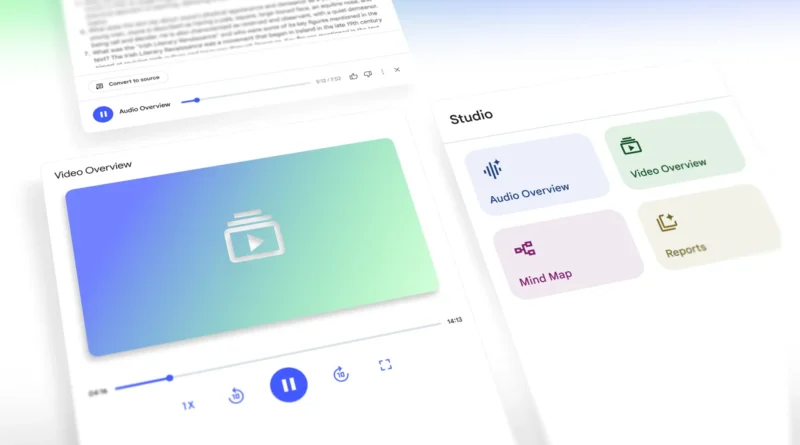
Here’s the standout update: NotebookLM now makes videos. Not just motion slideshows. We’re talking narrated explainers, custom visuals, diagrams, and quotes pulled directly from your documents—wrapped into crisp, accessible animations.
Imagine dropping 10 messy notes on quantum computing into the tool and getting back a video that even your cousin who barely passed physics could understand. These aren’t static recaps. They’re tailored walkthroughs that take abstract topics and turn them into classroom-grade material—without the classroom.
Need an intro for beginners? You got it. Want a breakdown targeted at niche experts? Also possible. You can now shape each video by setting learning goals, topics, and target audiences. And yes—it’s rolling out in English first, with multilingual support coming soon.
NotebookLM basically turned itself into your very own production crew. And it doesn’t complain, take breaks, or ask for a retake.
Studio Panel Gets a Major Creativity Boost
Now let’s talk Studio. Once a neat but limited workspace, it’s getting a full makeover. Before, you could only generate one of each format—one study guide, one mind map, one overview. That’s fine if you’re studying basic economics. But if your research dives into multiple chapters, nuanced contexts, or cross-functional team sharing? One map isn’t enough.
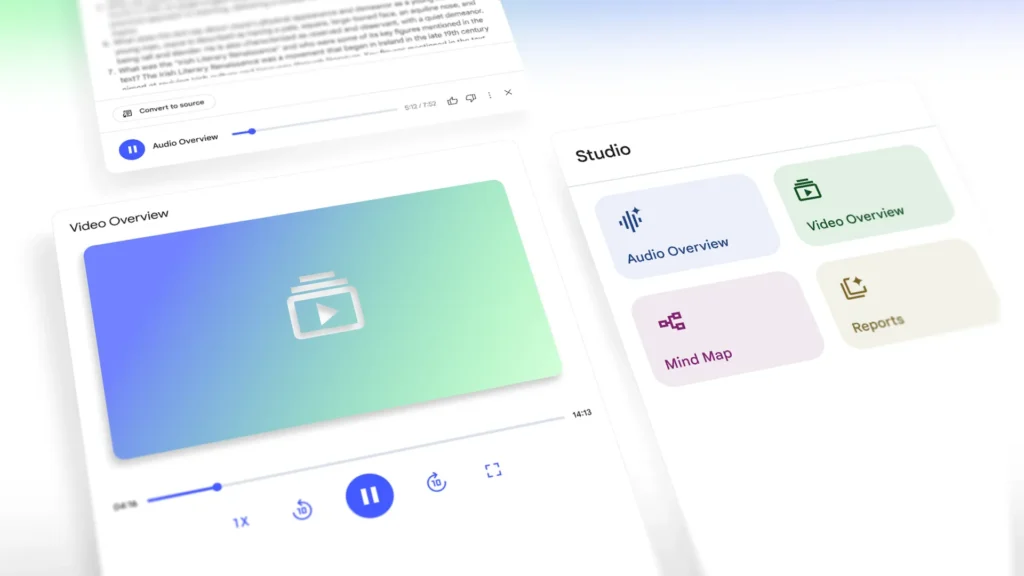
Enter the new Studio interface. You now have four distinct tiles:
- Audio Overview
- Video Overview
- Mind Map
- Report
And you’re no longer stuck in single-output purgatory. You can create multiple instances of each format, tailored to chapters, use cases, or different audiences.
Teaching a team? Generate separate video guides for design, marketing, and strategy roles. Doing a group study session? Share separate audio overviews in different languages. Organizing your chaotic thesis doc? Segment your course notes into chapter-based mind maps.
All of this lives in a clean list below the tiles, so no more hunting for drafts. Even better—you can now multitask inside Studio. Listen to an audio summary while scrolling through your mind map? Yes. It’s Google’s version of picture-in-picture for your brain.
Visuals and Voice, Now Working Together
Let’s state the obvious: AI-generated summaries are not new. Everyone’s feeding ChatGPT homework prompts and hoping for miracles. But NotebookLM goes further by building a bridge between formats.
Audio and video are now part of your notebook—not add-ons. They’re tied to your source material, your highlights, your curiosity. This means better context, fewer hallucinations, and more control.
For educators, that’s gold. For visual learners, it’s oxygen. And for anyone who wants smarter notes without reading 60 pages of PDF? It’s finally happening.
The Bigger Picture
Google isn’t just chasing Gen Z’s love for lo-fi explainers. It’s changing how teams collaborate across language, location, and literacy styles.
Picture a product launch team using NotebookLM to turn raw meeting notes into role-specific recaps: design gets a mind map, marketing receives a video, leadership gets a condensed report. All from the same source.
This is AI-powered learning at scale. Personalized, reusable, and kind to your bandwidth.
For more information, visit Google’s official blog The Keyword.
